
Table of Contents
TogglePowerPoint Shortcuts That Save Time
Microsoft PowerPoint is one of the most widely used presentation tools in schools, colleges, and workplaces. While most users rely on menus and toolbars, experienced presenters often use keyboard shortcuts to work faster and more efficiently. Learning just a handful of PowerPoint shortcuts can save hours of work when creating, editing, and delivering presentations.
Whether you’re a student, teacher, business professional, or content creator, these PowerPoint shortcuts can help you boost productivity and streamline your workflow.
Why Use PowerPoint Shortcuts?
Keyboard shortcuts eliminate the need to constantly switch between the keyboard and mouse. This helps users complete tasks more quickly and maintain focus while working on presentations.
Benefits of Using Shortcuts
| Benefit | Description |
|---|---|
| Faster Workflow | Complete tasks in less time |
| Improved Productivity | Reduce repetitive actions |
| Better Focus | Spend less time navigating menus |
| Professional Efficiency | Work like advanced users |
| Easier Presentation Control | Manage slides more smoothly |
Even learning a few shortcuts can significantly improve your PowerPoint experience.
Essential PowerPoint Shortcuts
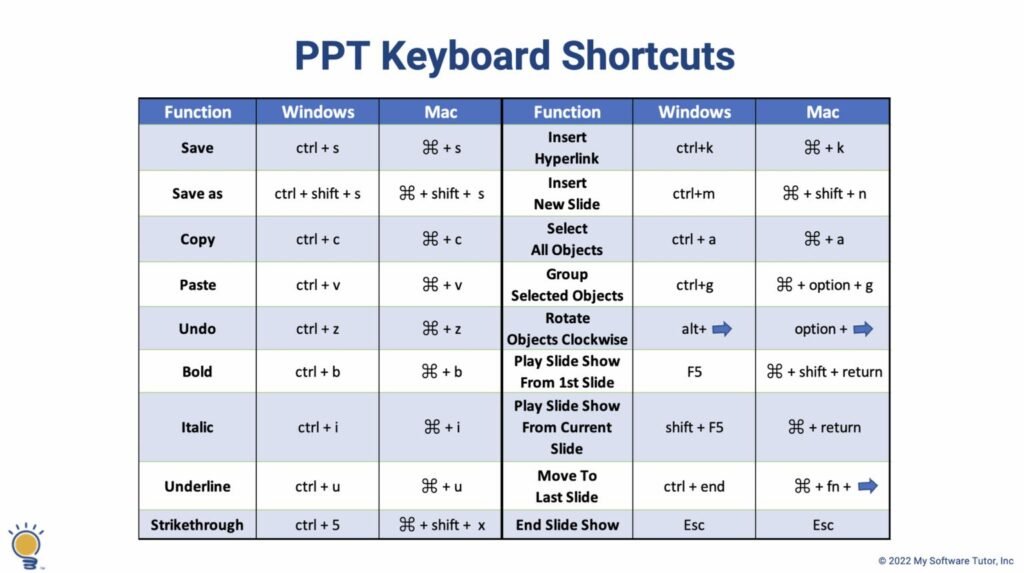
These are some of the most useful shortcuts every PowerPoint user should know.
Basic Editing Shortcuts
| Shortcut | Function |
|---|---|
| Ctrl + N | Create a new presentation |
| Ctrl + O | Open an existing presentation |
| Ctrl + S | Save presentation |
| Ctrl + P | Print presentation |
| Ctrl + Z | Undo last action |
| Ctrl + Y | Redo action |
| Ctrl + C | Copy selected item |
| Ctrl + X | Cut selected item |
| Ctrl + V | Paste copied item |
These shortcuts are among the most frequently used when creating presentation.
Slide Creation and Organization
| Shortcut | Function |
|---|---|
| Ctrl + M | Insert new slide |
| Ctrl + D | Duplicate selected slide |
| Delete | Remove selected slide |
| Ctrl + A | Select all objects |
| Ctrl + Shift + D | Duplicate selected object |
Using these shortcuts helps speed up presentation design and editing.
Text Formatting Shortcuts
Formatting text is one of the most common PowerPoint tasks.
Text Editing Commands
| Shortcut | Function |
|---|---|
| Ctrl + B | Bold text |
| Ctrl + I | Italic text |
| Ctrl + U | Underline text |
| Ctrl + E | Center text |
| Ctrl + L | Align text left |
| Ctrl + R | Align text right |
| Ctrl + Shift + > | Increase font size |
| Ctrl + Shift + < | Decrease font size |
These shortcuts make it easier to format slides without opening multiple menus.
Object and Design Shortcuts
PowerPoint presentations often include images, shapes, charts, and other visual elements.
Design Productivity Shortcuts
| Shortcut | Function |
|---|---|
| Ctrl + G | Group selected objects |
| Ctrl + Shift + G | Ungroup objects |
| Ctrl + K | Insert hyperlink |
| F4 | Repeat previous action |
| Alt + Shift + Left Arrow | Promote bullet level |
| Alt + Shift + Right Arrow | Demote bullet level |
These commands are especially useful for creating professional-looking slide layouts.
Presentation Mode Shortcuts
During a presentation, keyboard shortcuts help presenters navigate slides smoothly.
Slide Show Controls
| Shortcut | Function |
|---|---|
| F5 | Start presentation from beginning |
| Shift + F5 | Start from current slide |
| Esc | End slide show |
| N | Next slide |
| P | Previous slide |
| B | Black screen |
| W | White screen |
| Number + Enter | Jump to specific slide |
These shortcuts can help presenters maintain control during live presentations.
PowerPoint Shortcuts for Students
Most Useful Student Shortcuts
| Shortcut | Why It Helps |
|---|---|
| Ctrl + M | Quickly add slides |
| Ctrl + D | Duplicate layouts |
| Ctrl + S | Save work frequently |
| F5 | Instantly preview presentation |
| Ctrl + B | Highlight important points |
| Ctrl + K | Add references and links |
Mastering these shortcuts can make school projects much easier to complete.
Tips for Learning Shortcuts
Learning dozens of shortcuts at once can be overwhelming. Instead:
- Start with five shortcuts.
- Use them daily.
- Add new shortcuts gradually.
- Practice during real projects.
- Keep a shortcut reference sheet nearby.
Most users begin remembering shortcuts naturally after repeated use.
Common Mistakes to Avoid
When using PowerPoint shortcuts, avoid these common errors:
- Forgetting to save frequently.
- Accidentally deleting slides.
- Overusing duplicate slides without editing content.
- Relying solely on shortcuts without reviewing design quality.
- Ignoring presentation practice.
Shortcuts improve speed, but effective presentation design still requires attention to detail.
Quick Reference Cheat Sheet
Top 10 PowerPoint Shortcuts
| Shortcut | Function |
|---|---|
| Ctrl + S | Save |
| Ctrl + M | New Slide |
| Ctrl + D | Duplicate |
| Ctrl + Z | Undo |
| Ctrl + Y | Redo |
| Ctrl + B | Bold |
| Ctrl + K | Hyperlink |
| F5 | Start Slide Show |
| Shift + F5 | Start Current Slide |
| Esc | End Presentation |
These shortcuts alone can dramatically improve your productivity.
Final Thoughts
PowerPoint shortcuts are simple tools that can save significant amounts of time when creating and delivering presentations. By mastering common commands for editing, formatting, slide management, and presentation control, users can work more efficiently and focus on creating high-quality content.
Whether you’re preparing a classroom project, business proposal, or conference presentation, these shortcuts can help you build presentations faster while maintaining a professional workflow.