
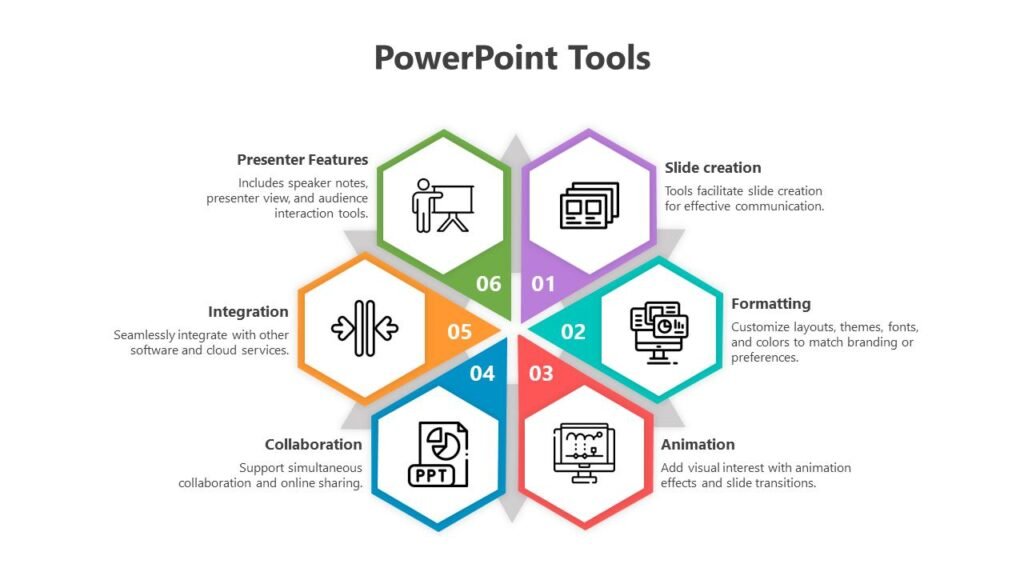
Most people use Microsoft PowerPoint for creating basic slides, adding images, and presenting information. However, PowerPoint includes many powerful features that often go unnoticed. These hidden tools can help users create better presentations, save time, improve collaboration, and deliver more professional results.
Whether you’re a student, teacher, business professional, or content creator, discovering these lesser-known PowerPoint features can significantly improve your workflow. In this guide, we’ll explore some of the most useful PowerPoint features you may not know about in 2026.
Table of Contents
ToggleWhy Learn Advanced PowerPoint Features?
Many users only utilize a small percentage of PowerPoint’s capabilities. By learning additional features, you can:
- Create presentations faster.
- Improve slide design.
- Enhance collaboration.
- Deliver more engaging presentations.
- Reduce repetitive work.
- Present information more effectively.
These tools can help transform ordinary presentations into professional-quality slide decks.
1. Design Ideas (PowerPoint Designer)
One of PowerPoint’s most helpful features is Design Ideas. This tool automatically suggests professional slide layouts based on your content.
Simply insert text or images, and PowerPoint generates multiple design options.
Benefits of Design Ideas
| Benefit | Description |
|---|---|
| Saves Time | Automatic slide design |
| Professional Appearance | Better visual layouts |
| Beginner-Friendly | No design skills required |
| Consistency | Maintains presentation style |
This feature is especially useful for users who struggle with slide design.
2. Presenter View
Many presenters overlook Presenter View, yet it is one of PowerPoint’s most valuable tools.
Presenter View allows you to see:
- Speaker notes.
- Presentation timer.
- Current slide.
- Upcoming slide preview.
Meanwhile, your audience only sees the presentation itself.
This feature helps presenters stay organized and confident.
3. Morph Transition
Morph is one of PowerPoint’s most impressive animation features.
Instead of basic slide transitions, Morph creates smooth movement between slides by automatically animating objects.
Common Uses
- Product demonstrations.
- Process explanations.
- Interactive storytelling.
- Professional business presentations.
The effect often looks similar to advanced motion graphics software.
4. Screen Recording
Many users don’t realize that PowerPoint includes a built-in screen recorder.
You can record:
- Software tutorials.
- Website demonstrations.
- Training videos.
- Educational content.
The recording can then be inserted directly into your presentation.
Screen Recording Benefits
| Feature | Advantage |
|---|---|
| Built-In Tool | No extra software needed |
| Easy Editing | Works inside PowerPoint |
| High Quality | Suitable for tutorials |
| Quick Sharing | Easy presentation integration |
5. Zoom for PowerPoint
Zoom allows presenters to create interactive navigation within presentations.
Instead of moving slide by slide, you can jump between sections dynamically.
This feature is particularly useful for:
- Training sessions.
- Business meetings.
- Interactive workshops.
- Educational presentations.
Zoom creates a more flexible presentation experience.
6. Real-Time Collaboration
Modern versions of PowerPoint support real-time collaboration similar to online document editors.
Multiple team members can:
- Edit slides simultaneously.
- Leave comments.
- Suggest changes.
- Track revisions.
Collaboration Advantages
| Feature | Benefit |
|---|---|
| Shared Editing | Faster teamwork |
| Cloud Storage | Access anywhere |
| Commenting | Easy feedback |
| Auto Save | Reduces data loss |
This feature is especially valuable for remote teams.
7. SmartArt Graphics
SmartArt helps convert ordinary text into visually appealing diagrams.
Available layouts include:
- Process diagrams.
- Organizational charts.
- Hierarchies.
- Timelines.
- Relationship maps.
8. Rehearse with Coach
One of PowerPoint’s newer features is Presenter Coach.
This tool analyzes your presentation practice and provides feedback on:
- Speaking pace.
- Filler words.
- Repeated phrases.
- Presentation timing.
It acts like a virtual presentation trainer.
Why It Helps
- Improves confidence.
- Enhances speaking skills.
- Reduces presentation mistakes.
- Encourages better delivery.
9. Ink and Drawing Tools
PowerPoint includes digital drawing tools that allow users to annotate slides during presentations.
These tools are useful for:
- Classroom teaching.
- Training sessions.
- Technical explanations.
- Interactive meetings.
Users with touchscreens or stylus devices can benefit greatly from this feature.
10. Export to Video
Many users think PowerPoint presentations can only be shown as slide decks. In reality, PowerPoint can export presentations as video files.
Export Benefits
| Benefit | Use Case |
|---|---|
| MP4 Output | Easy sharing |
| Narration Support | Recorded presentations |
| Video Playback | Social media and websites |
| Remote Learning | Online education |
This feature is ideal for creating tutorials, webinars, and training materials.
Hidden Productivity Features
Here are a few additional PowerPoint tools many users overlook:
| Feature | Purpose |
|---|---|
| Slide Master | Global design control |
| Format Painter | Copy formatting instantly |
| Quick Access Toolbar | Faster workflow |
| Selection Pane | Manage overlapping objects |
| Accessibility Checker | Improve accessibility |
These small features can save significant time during presentation creation.
Who Should Use These Features?
These advanced tools benefit:
- Students creating projects.
- Teachers building lessons.
- Business professionals.
- Sales teams.
- Content creators.
- Trainers and educators.
Learning even a few of these features can dramatically improve presentation quality.
Final Thoughts
Microsoft PowerPoint offers far more than basic slides and bullet points. Features such as Design Ideas, Morph transitions, Presenter View, Zoom, SmartArt, Presenter Coach, and built-in screen recording can help users create more engaging and professional presentations.
By exploring these lesser-known capabilities, you can work more efficiently, design better presentations, and deliver your message with greater confidence. Whether you’re presenting in a classroom, boardroom, or online meeting, these hidden PowerPoint features can take your presentations to the next level.