
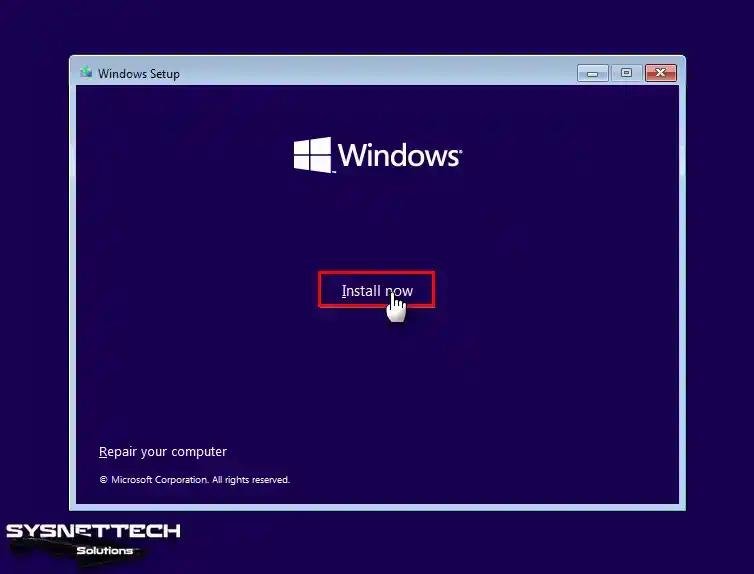
Installing Windows in VMware is one of the most common uses of virtualization technology. Whether you want to test software, create a development environment, run multiple versions of Windows, or learn virtualization, VMware makes the process simple and efficient.
With VMware Workstation, you can install Windows as a virtual machine without affecting your main operating system. The virtual machine operates like a separate computer, complete with its own virtual hardware, storage, memory, and networking capabilities.
This guide explains the complete process of installing Windows in VMware, from downloading the installation files to configuring your virtual machine for optimal performance.
Table of Contents
ToggleWhat You Need Before You Start
Before installing Windows in VMware, make sure you have the necessary requirements.
Requirements
Meeting these requirements helps ensure a smooth installation experience.
Step 1: Download the Windows ISO
The first step is obtaining a Windows installation ISO file.
Common Windows Versions
| Version | Recommended Use |
|---|---|
| Windows 11 | Modern systems |
| Windows 10 | Compatibility testing |
| Windows Server | Server environments |
Always download installation media from official Microsoft sources to ensure security and reliability.
Step 2: Open VMware Workstation
Launch VMware Workstation after installation.
On the main dashboard, click:
Create a New Virtual Machine
VMware will launch the virtual machine creation wizard.
Installation Options
| Option | Purpose |
|---|---|
| Typical | Recommended for most users |
| Custom | Advanced configuration |
Most beginners should select the Typical option.
Step 3: Select the Windows ISO File
VMware will ask how you want to install the operating system.
Choose:
Installer Disc Image File (ISO)
Then browse to your downloaded Windows ISO file.
Why Use an ISO?
| Benefit | Description |
|---|---|
| Faster Installation | Direct installation |
| Easy Setup | No physical media needed |
| Better Compatibility | Modern installation method |
Why Install Windows in VMware?
There are many reasons to run Windows in a virtual machine.
Popular Uses
- Software testing.
- Development environments.
- Cybersecurity labs.
- Learning Windows administration.
- Running isolated applications.
- Compatibility testing.
Virtualization allows users to experiment safely without affecting their primary operating system.
Final Thoughts
Installing Windows in VMware is a straightforward process that provides a powerful and flexible computing environment. By creating a virtual machine, users can safely run Windows for testing, development, education, or professional work without modifying their primary system.
With proper resource allocation, VMware Tools installation, and regular maintenance, a Windows virtual machine can deliver excellent performance and functionality. Whether you’re a beginner learning virtualization or an IT professional building advanced lab environments, VMware remains one of the best platforms for running Windows virtually in 2026.