
Virtual machines (VMs) have become essential tools for developers, IT professionals, cybersecurity students, and technology enthusiasts. A virtual machine allows you to run a separate operating system inside your existing computer without affecting the host system.
Whether you want to test software, learn Linux, run older applications, or create a secure testing environment, creating a virtual machine is often the best solution. In this guide, you’ll learn what a virtual machine is, what you need before getting started, and the step-by-step process for creating one using popular virtualization software.
Table of Contents
ToggleWhat Is a Virtual Machine?
A virtual machine is a software-based computer that runs inside your physical computer. It has its own operating system, storage, memory, and virtual hardware.
For example, a Windows 11 computer can run:
- Windows 10
- Ubuntu Linux
- Kali Linux
- Windows Server
- Other operating systems
Each virtual machine operates independently from the host system.
Benefits of Using Virtual Machines
Virtual machines offer many advantages.
Key Benefits
| Benefit | Description |
|---|---|
| Safe Testing | Experiment without affecting your main system |
| Multiple Operating Systems | Run several OS environments |
| Software Development | Test applications easily |
| Cybersecurity Training | Create isolated labs |
| Cost Savings | No extra hardware required |
These benefits make virtualization popular across many industries.
What You Need Before Creating a Virtual Machine
Before creating a VM, you’ll need a few things.
Requirements
| Requirement | Recommended |
|---|---|
| Processor | Intel VT-x or AMD-V support |
| RAM | 8 GB minimum, 16 GB recommended |
| Storage | SSD preferred |
| Virtualization Software | VMware or VirtualBox |
| Operating System ISO | Windows, Linux, or another OS |
Modern computers usually support virtualization technologies by default.
Step 1: Install Virtualization Software
The first step is installing virtualization software.
Popular options include:
- VMware Workstation
- VirtualBox
- Hyper-V
- VMware Player
Most beginners choose VMware Workstation or VirtualBox because they are easy to use.
Step 2: Download an Operating System ISO
A virtual machine requires an operating system installation file.
Common ISO Downloads
| Operating System | Use Case |
|---|---|
| Windows 11 | General computing |
| Windows 10 | Compatibility testing |
| Ubuntu Linux | Development and learning |
| Kali Linux | Cybersecurity training |
| Windows Server | Server testing |
Download the ISO file from the official operating system provider.
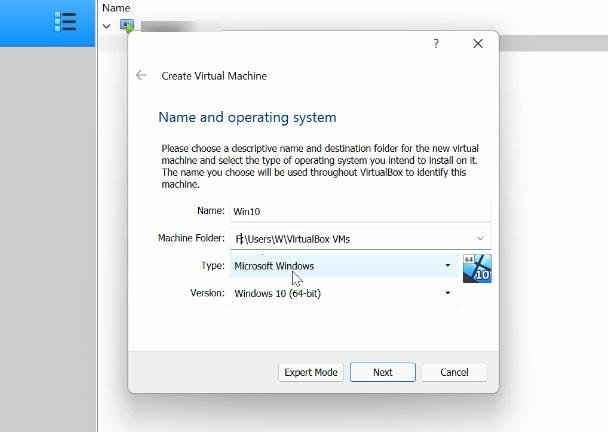
Step 3: Create a New Virtual Machine
After installing virtualization software:
- Open VMware or VirtualBox.
- Click Create New Virtual Machine.
- Choose the installation method.
- Select the downloaded ISO file.
The software will guide you through the setup process.
Information You’ll Provide
| Setting | Example |
|---|---|
| VM Name | Ubuntu Test Machine |
| Storage Location | SSD Drive |
| Guest OS | Ubuntu Linux |
| ISO File | Ubuntu ISO |
Best Uses for Virtual Machines
Virtual machines are useful for many tasks.
Popular Applications
- Software development.
- Operating system testing.
- Malware analysis.
- Network simulations.
- Cybersecurity labs.
- Learning Linux.
- Running legacy applications.
The flexibility of virtualization makes it valuable for both beginners and professionals.
Final Thoughts
Creating a virtual machine is easier than many people think. With virtualization software such as VMware Workstation or VirtualBox, users can quickly set up isolated environments for testing, development, learning, and experimentation.
By selecting the right operating system, allocating appropriate resources, configuring networking, and installing guest tools, you can build a reliable virtual machine that performs efficiently and safely. Whether you’re exploring Linux, testing software, or creating a virtual lab, virtual machines remain one of the most useful tools in modern computing.